

Views: 255 Author: Princee Lee Publish Time: 01-14-2026 Origin: Princee Lee


Content Menu
● Understanding RFID and Apple Wallet
● Can You Add an RFID Card to Apple Wallet?
>> Official Support and Limitations
>>> Apple Wallet Supported RFID Cards
● Requirements for Adding RFID Cards to Apple Wallet
● Step-by-Step Guide: How to Add RFID Card to Apple Wallet
>> 1. Check Card Compatibility
>> 2. Use the Wallet App for Supported Cards
>>> Adding a Corporate or Student Access Card
>> 3. Using Third-Party Apps for Unsupported Cards
>> 4. Test Your Digital RFID Card
● How to Use RFID Card with iPhone
● Advanced Features and Customization
>> Organizing Digital RFID Cards
● Troubleshooting Common Issues
● Apple Wallet RFID Card Setup for Businesses
● Gstar Technology (Shenzhen) Co., Ltd.: Your Partner for RFID Wallets and OEM/ODM Solutions
>> Who We Are
>> 1. Can I add any RFID card to Apple Wallet?
>> 2. What are the requirements for Apple Wallet RFID card setup?
>> 3. How do I use an RFID card on iPhone Wallet?
>> 4. Can I use my iPhone as a building access card?
>> 5. Why choose Gstar Technology for RFID wallets?
In today's fast-paced, digital-first world, the convenience of carrying your essential cards on your smartphone is more valuable than ever. Apple Wallet has revolutionized the way we manage payments, tickets, and even access credentials. But what about physical RFID cards—like building access cards, transit passes, or membership cards? Can you add an RFID card to Apple Wallet and use it seamlessly with your iPhone? This comprehensive guide will walk you through everything you need to know about Apple Wallet RFID card setup, including supported card types, step-by-step instructions, troubleshooting, and how Gstar Technology (Shenzhen) Co., Ltd. can help you with OEM/ODM solutions and ready-in-stock RFID wallets for your business or personal needs.

RFID (Radio Frequency Identification) cards use radio waves to transmit data to compatible readers. They are commonly used for building access, public transportation, hotel rooms, and secure identification. These cards are valued for their contactless convenience and security.
Apple Wallet is a digital wallet app built into iPhones and Apple Watches. It allows users to store and use digital versions of credit cards, debit cards, transit passes, event tickets, and more. With the right setup, you can also use Apple Wallet RFID access card features for supported systems.
Apple Wallet does not natively support all RFID cards. However, certain types—such as transit cards, student IDs, and some corporate access cards—can be added if the issuer supports Apple Wallet integration. For other RFID cards, third-party apps and workarounds may be required.
- Transit Cards: Many major transit systems worldwide support direct integration with Apple Wallet.
- Corporate Employee Badges: Some companies partner with Apple to allow employees to add their access cards to Apple Wallet.
- Residential Access Keys: Select property management companies can issue digital resident keys for Apple Wallet.
For unsupported cards, you may need to use third-party apps or hardware solutions.
Before you begin the iPhone RFID card wallet setup, ensure you have:
- An iPhone 7 or later (with NFC support)
- The latest version of iOS
- A compatible RFID card (transit, access, or membership)
- The official app or invitation from your card issuer (if required)
- An Apple ID with iCloud and two-factor authentication enabled
Not all RFID cards are supported. Check with your card issuer or visit their website to see if they offer Apple Wallet integration. For example, many transit agencies and universities provide this feature.
1. Open the Wallet app on your iPhone.
2. Tap the “+” button in the top right corner.
3. Select “Transit Card” from the list.
4. Choose your transit system and follow the prompts to add your card.
5. If you have a physical card, you may be able to transfer its balance to your iPhone.
1. Open the Wallet app.
2. Tap the “+” button.
3. Select “Access Card” or “Student ID” (if available).
4. Follow the instructions provided by your employer or school.
5. Authenticate with Face ID, Touch ID, or your passcode.
1. Open the invitation or app from your property manager.
2. Tap “Add to Apple Wallet.”
3. Follow the on-screen instructions to complete the setup.
If your card is not natively supported, you may be able to use third-party apps like Pass2U or SimplyTapp to create a digital version of your RFID card. These apps guide you through scanning your card's UID and encoding a digital pass.
Note: Not all access systems will accept emulated cards, and security restrictions may apply.
After setup, test your card by holding the top of your iPhone near the reader. For best results:
- Remove thick phone cases or metal accessories.
- Align the top of your iPhone with the reader.
- If it doesn't work, try restarting your iPhone or re-adding the card.
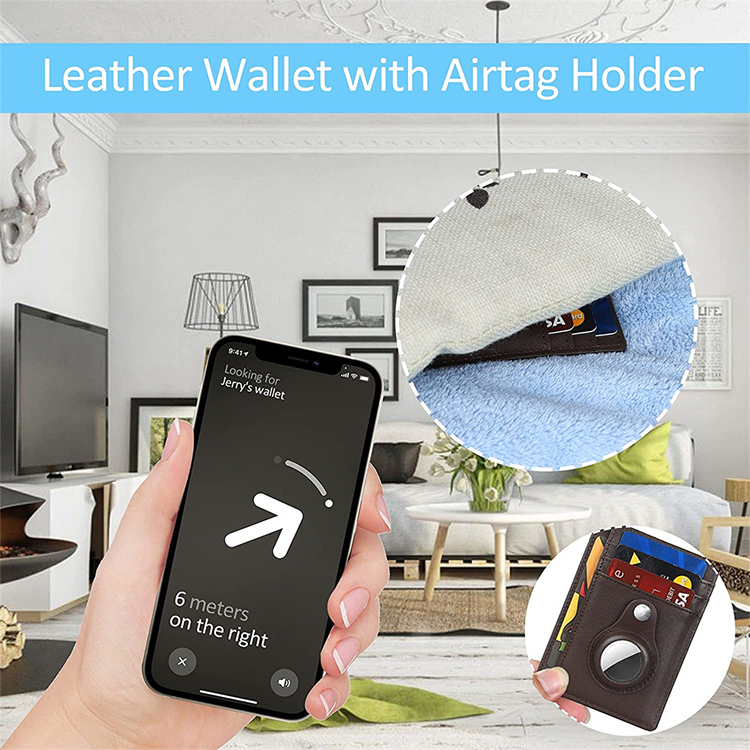
Once your card is added, using it is simple:
- Double-click the side button (Face ID) or home button (Touch ID) to open Apple Wallet.
- Select your RFID card or pass.
- Hold the top of your iPhone near the reader.
- Wait for the checkmark or confirmation sound.
For some cards, “Express Mode” allows you to use the card without unlocking your device.
Apple Wallet allows you to organize your cards and passes for easy access. You can:
- Add labels or notes for identification.
- Set preferences for automatic card selection.
- Group cards by category (transit, access, payment, etc.).
Apple Wallet uses advanced encryption and authentication (Face ID, Touch ID, passcode) to protect your digital RFID cards. Your card data is never shared with Apple or stored on their servers.
- Check with your card issuer for Apple Wallet compatibility.
- Use third-party apps if available.
- Ensure NFC is enabled and your iPhone is updated.
- Remove any case or accessory that may block the signal.
- Try re-adding the card or restarting your device.
- Some corporate or residential systems may restrict mobile integration for security reasons.
- Contact your card issuer or property manager for assistance.
If you are a business, school, or property manager looking to offer digital RFID cards to your users, you can partner with Apple or use third-party solutions to issue digital credentials. This enhances security, reduces costs, and offers a seamless user experience.
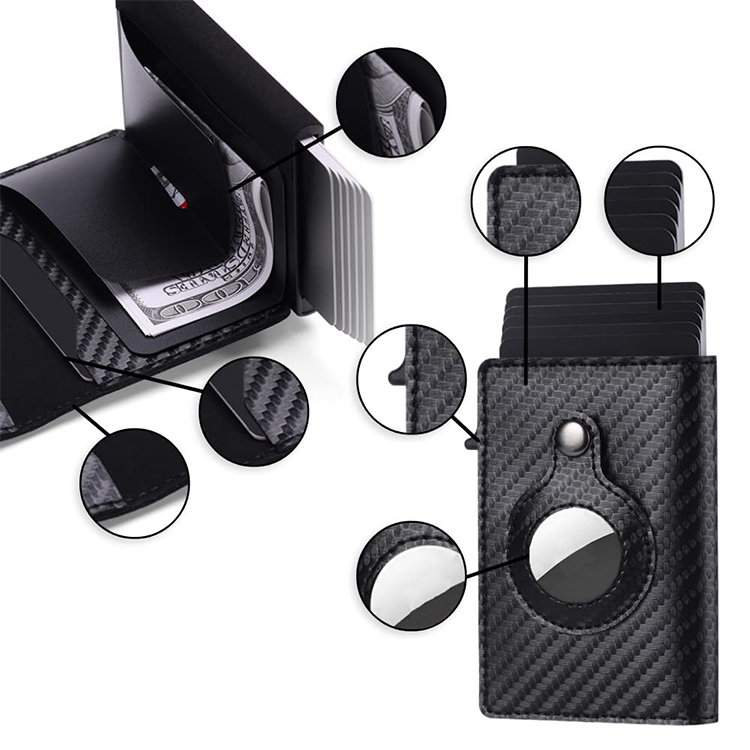
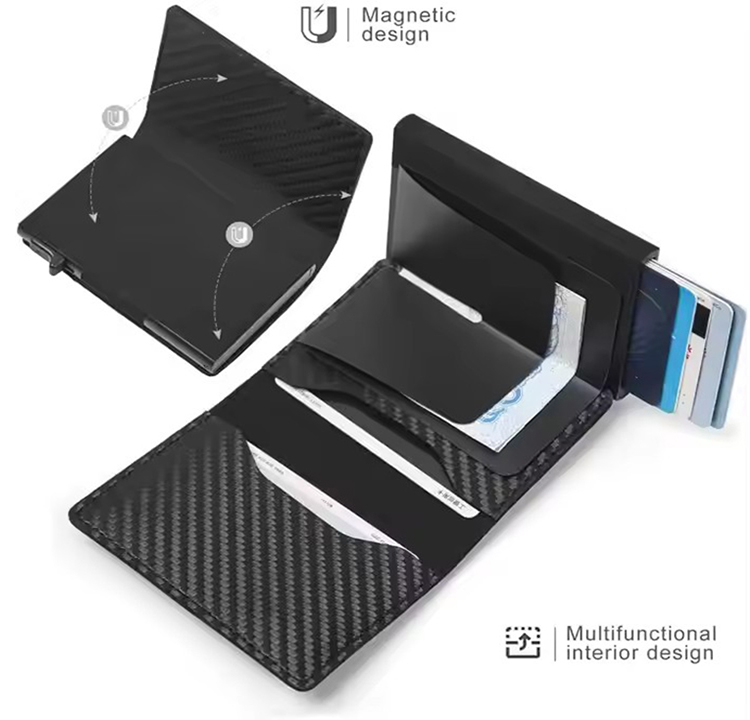
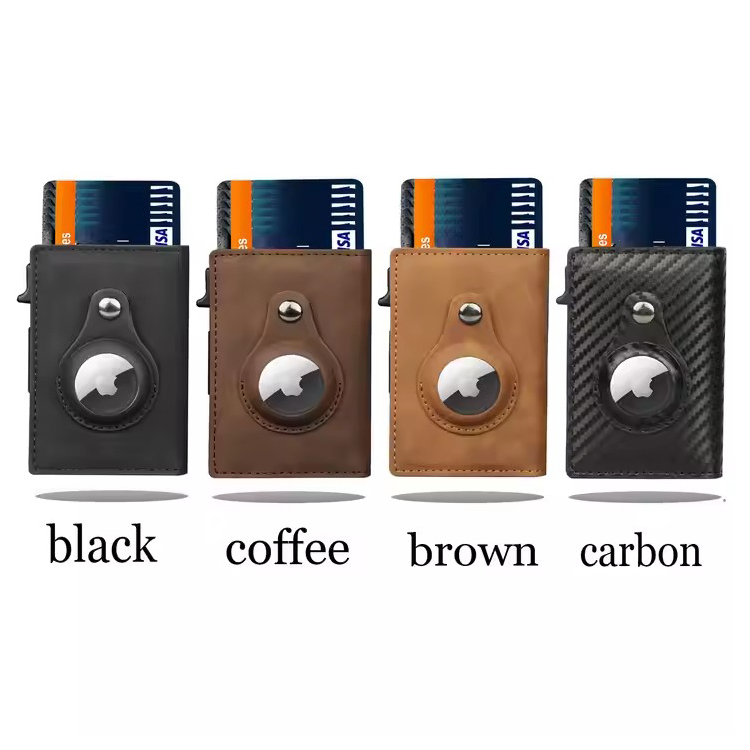
Gstar Technology (Shenzhen) Co., Ltd. is a leading manufacturer and supplier of high-quality RFID wallets and card holders. We offer:
- OEM/ODM Services: Custom design, branding, and manufacturing for your business.
- Wallets Ready in Stock: Fast delivery for both small and large orders.
- Advanced Security: RFID-blocking technology to protect your cards from unauthorized scanning.
- Customization: Logo engraving, color selection, and packaging options.
- Unmatched Quality: Premium materials and state-of-the-art manufacturing.
- Innovation: Constantly exploring new designs and technologies.
- Customer-Centric Approach: Dedicated support from design to delivery.
- Global Reach: Efficient logistics for worldwide shipping.
- Competitive Pricing: High-quality products at affordable prices.
Adding an RFID card to Apple Wallet can greatly enhance your daily convenience and security, especially for transit, access, and membership cards. While not all RFID cards are natively supported, Apple continues to expand its partnerships, and third-party solutions are available for many use cases. For businesses and individuals seeking secure, stylish, and customizable RFID wallets, Gstar Technology (Shenzhen) Co., Ltd. is your trusted partner. With OEM/ODM services, ready-in-stock products, and a commitment to quality, we help you stay ahead in the digital age.

No, only supported cards (such as certain transit, student, and access cards) can be added natively. For other cards, third-party apps may be required, but compatibility is not guaranteed.
You need an iPhone 7 or later, the latest iOS, a compatible RFID card, and sometimes an official app or invitation from your card issuer.
Open Apple Wallet, select your card, and hold the top of your iPhone near the reader. For some cards, Express Mode allows use without unlocking your device.
If your building's access system supports Apple Wallet integration, you can use your iPhone as a digital access card. Check with your property manager or access provider.
We offer premium quality, advanced RFID-blocking technology, OEM/ODM customization, fast delivery, and exceptional customer service for all your RFID wallet needs.
Apple Wallet natively supports credit cards and transit cards. However, most access cards (like office or hotel keys) use encrypted RFID frequencies (13.56MHz) that the iPhone cannot read directly for security reasons. You need a workaround device to clone the signal.
Yes, but not directly. You cannot add them via the "+" button. Instead, you need an NFC writer to copy the UID data from your physical card to a special sticker or ring that works with Apple Wallet.


